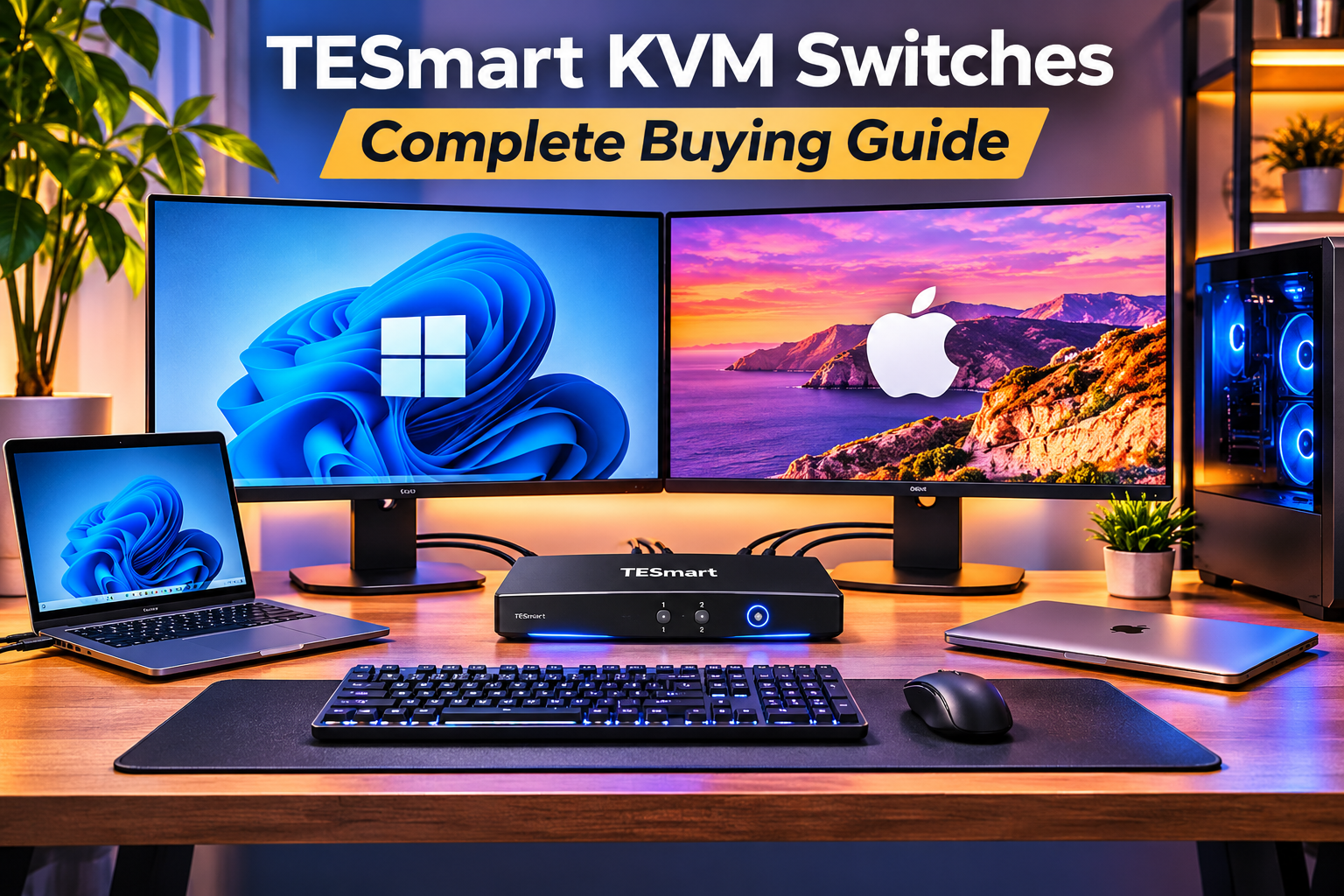
TESmart KVM switches make it possible to control multiple computers using a single keyboard, mouse, and monitor setup. Whether you’re managing a work laptop and personal desktop, switching between Mac and Windows, or building a dual-monitor workstation, the right KVM switch can simplify your workspace without constant cable swapping.
However, not every KVM switch supports the same display resolutions, refresh rates, USB devices, or computer connections. Understanding these differences is essential before choosing a model.
In this buying guide, we explain how TESmart KVM switches work, explore their key features, compare common configurations, and highlight the compatibility details worth checking before purchasing.
Affiliate Disclosure: This article contains affiliate links. If you purchase through them, Prospect Goods Promotion may earn a commission at no additional cost to you.
Browse TESmart KVM switches and explore available configurations to find a model that matches your computers, monitors, and workspace.
What Are TESmart KVM Switches?
KVM stands for Keyboard, Video, and Mouse. A KVM switch is a device that allows multiple computers to share the same keyboard, mouse, and monitor or set of monitors.
Instead of disconnecting and reconnecting cables every time you change computers, a KVM switch lets you move between connected systems using a button, keyboard shortcut, or compatible remote control.
For example, imagine having a work laptop and a personal desktop computer on the same desk. Without a KVM switch, you might need separate keyboards and mice or repeatedly change monitor inputs.
With a compatible TESmart KVM switch, both computers can connect to the same peripherals, helping create a cleaner and more organized workspace.
Common applications include:
- Home offices with separate work and personal computers.
- Gaming setups that also serve as workstations.
- Creative workspaces combining Mac and Windows computers.
- IT environments with multiple systems.
- Dual-monitor and multi-monitor desks.
Why EDID Emulation Matters
One of the important features available on many TESmart KVM switches is EDID emulation.
EDID stands for Extended Display Identification Data. It allows a monitor to communicate information about its supported display modes and capabilities to a connected computer.
When switching between computers using some basic KVM devices, the computer that is no longer active may detect that its monitor has been disconnected.
This can cause open windows to move, desktop arrangements to change, or applications to appear on a different screen.
EDID emulation helps maintain display information for connected computers, reducing these interruptions when switching between systems.
Benefits of EDID Emulation
- Helps preserve desktop window arrangements.
- Reduces unnecessary display reconnection events.
- Supports more convenient switching between computers.
- Can improve the experience of using multiple monitors.
Actual behavior depends on the KVM model, connected computers, operating systems, and monitor configuration. Buyers should confirm EDID support on the specific product page.
Types of TESmart KVM Switches
TESmart offers different KVM configurations designed for home offices, gaming desks, professional workstations, and technical environments.
The right choice depends primarily on how many computers and monitors you want to connect.
1. KVM Switches for Two Computers
Two-computer KVM switches are a practical starting point for many home offices.
These devices allow two computers to share a keyboard, mouse, and one or more monitors.
Typical configurations include:
- Two computers sharing one monitor.
- Two computers sharing two monitors.
- HDMI or DisplayPort connections, depending on the model.
- Shared USB peripherals on supported devices.
This category can be useful for someone who works on a company laptop during the day and switches to a personal computer afterward.
2. KVM Switches for Four Computers
For more complex workspaces, TESmart offers switches designed to connect four computers to shared monitors and peripherals.
These configurations can be useful for software developers, IT professionals, content creators, and people managing several computer systems.
Some advanced models support high-resolution displays and higher refresh rates, but these specifications vary considerably.
Always verify the exact number of supported monitors, available ports, and display capabilities before purchasing.
3. Multi-Port KVM Switches for IT Environments
TESmart also offers larger KVM configurations intended for environments where several computers or servers need to be managed from a single control station.
These products may include 8-port or 16-port configurations, depending on the model.
They are more suitable for server rooms, technical laboratories, and equipment racks than ordinary home-office desks.
4. Thunderbolt KVM Switches for Mac and PC Workstations
Some TESmart products are designed for advanced workstations that use Thunderbolt connectivity.
These solutions can be particularly relevant for users combining Mac and Windows computers or working with high-resolution displays.
Depending on the model, additional features may include laptop charging, USB connectivity, and docking-station functionality.
Mac users should pay particular attention to monitor compatibility, Thunderbolt requirements, and the number of external displays supported by their specific computer.
5. DisplayLink and Multi-Monitor Solutions
TESmart also offers products that incorporate docking functionality and, on selected models, DisplayLink technology.
DisplayLink can enable additional external display configurations through compatible hardware and software.
However, DisplayLink solutions may require drivers and may not be appropriate for every gaming or graphics-intensive application.
Check the manufacturer’s compatibility information before choosing this type of setup.
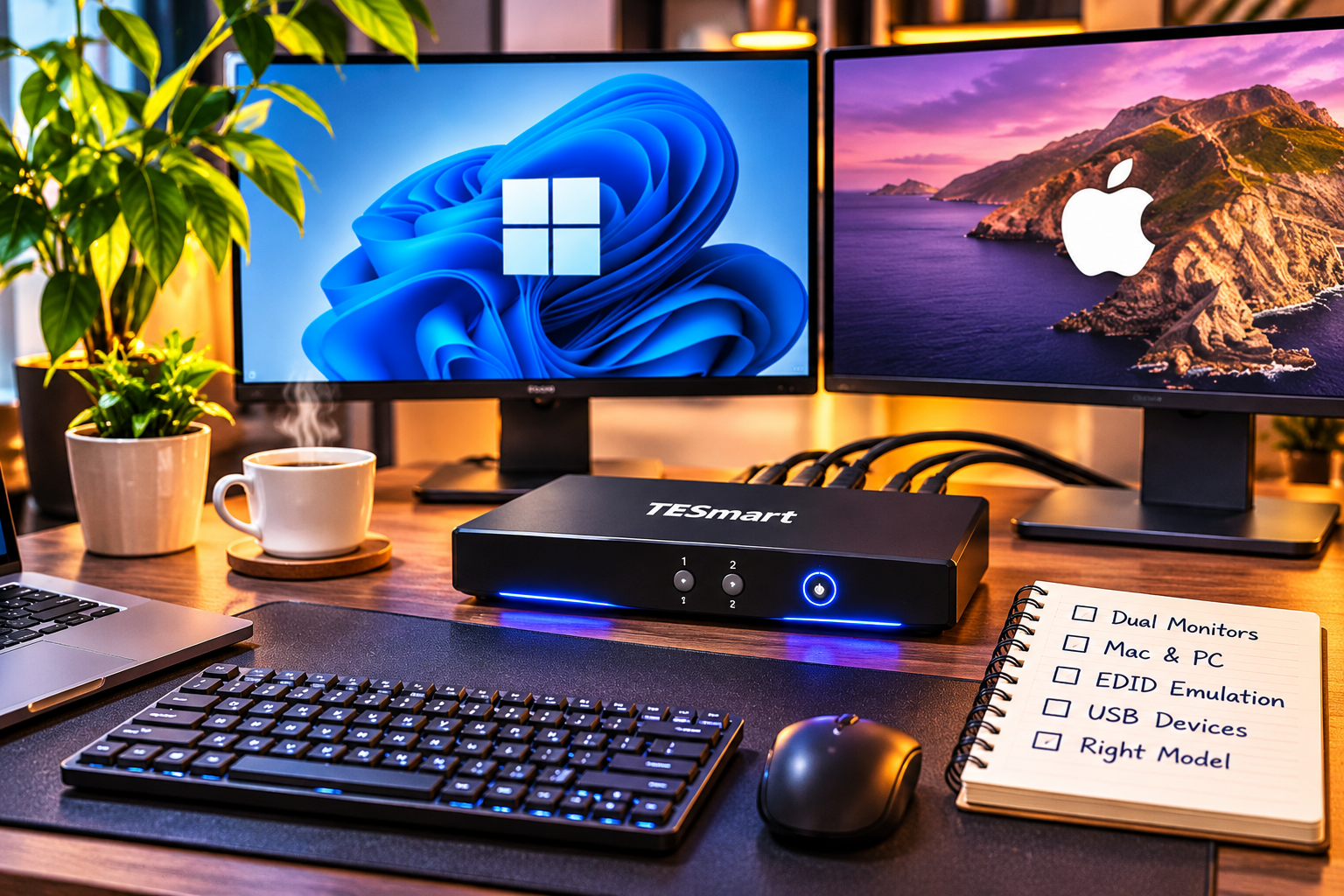
A modern dual-monitor workspace illustrating how a TESmart KVM switch can simplify switching between computers.
How to Choose the Right TESmart KVM Switch
Choosing a KVM switch becomes easier when you start with your actual equipment rather than shopping by features alone.
Step 1: Count Your Computers
Start by determining how many computers need to share your desk setup.
- Two computers: a standard two-port configuration may be sufficient.
- Four computers: consider a four-port KVM switch.
- More computers: explore larger multi-port or rack-oriented solutions.
Remember that a two-port switch cannot connect four computers simultaneously.
Step 2: Count Your Monitors
Next, determine how many monitors you want to share.
A single-monitor setup has different requirements from a dual-monitor or triple-monitor workstation.
Check whether the KVM switch supports the number of displays you use and whether every connected computer can provide the required video outputs.
Step 3: Check HDMI, DisplayPort, and Thunderbolt Connections
Not every computer and monitor uses the same connections.
Common interfaces include HDMI, DisplayPort, USB-C, and Thunderbolt.
Some configurations may require adapters, but adapters do not automatically guarantee full compatibility or maximum refresh rates.
Review the connection diagram and compatibility information for the exact TESmart model.
Step 4: Verify Resolution and Refresh Rate
Display performance is another important consideration.
For office applications, a switch supporting 4K at 60Hz may be sufficient.
Gaming systems and specialized creative workstations may require higher refresh rates or greater bandwidth.
Selected TESmart models advertise advanced display capabilities, including support for 4K at 144Hz or 8K at 60Hz.
However, these capabilities are model-specific and may depend on the computer, graphics hardware, cable quality, and display configuration.
Step 5: Check USB and Peripheral Support
Think about the devices you want to share between computers.
- Keyboard and mouse.
- Webcam.
- Printer.
- USB headset.
- External storage devices.
- Other compatible USB accessories.
Some KVM switches offer additional USB ports for peripheral sharing, while simpler models may provide fewer options.
Check USB speed and compatibility, especially when using webcams or external storage.
Step 6: Confirm Audio and Network Features
Depending on the model, a TESmart switch may support audio connections, microphones, or network connectivity.
These features are not universal across the product range.
If you rely on a headset for meetings or need shared network access, verify those specifications before ordering.
Step 7: Review Included Cables
Before purchasing, check the package contents.
Some KVM packages include cables for connecting computers, while additional monitor cables or adapters may need to be purchased separately.
Reviewing the included accessories can help avoid installation delays.
How Switching Between Computers Works
TESmart KVM switches may offer several ways to change which computer is active.
Front-Panel Controls
Many models include physical buttons that allow users to select the computer they want to control.
This is a straightforward option for desks where the switch is easily accessible.
Keyboard Hotkeys
Supported models allow switching through predefined keyboard combinations.
This can be convenient for users who frequently move between systems without wanting to reach for the switch.
Remote Control
Some TESmart switches include remote-control options, allowing the device to be positioned away from the main working area.
Remote availability and functionality depend on the model.
Advanced Switching Features
Selected advanced TESmart products may offer additional features such as mouse-based switching or cross-computer clipboard functionality.
These capabilities should not be assumed to be available on every KVM switch.
Check the product specifications and any software requirements before purchasing a model for these features.
TESmart KVM Switches for Different Workspaces
Home Office Setups
A home office with a work laptop and personal desktop is one of the most practical situations for using a KVM switch.
Instead of maintaining two keyboards, two mice, and separate monitor arrangements, compatible equipment can share a single workspace.
Gaming and Productivity
Gamers who also use a separate computer for work may benefit from a KVM switch that supports their display’s resolution and refresh rate.
For high-refresh-rate gaming, it is especially important to confirm bandwidth and monitor compatibility.
Creative Professionals
Designers, editors, and other creative professionals sometimes use different operating systems for different applications.
A compatible KVM switch can make it easier to move between Mac and Windows environments while sharing selected peripherals.
IT and Technical Workstations
IT professionals who manage multiple computers can use KVM switches to reduce the number of monitors, keyboards, and mice required.
Larger multi-port configurations may be appropriate for equipment rooms and testing environments.
Advantages and Limitations of TESmart KVM Switches
Potential Advantages
- Reduces the need for duplicate keyboards and mice.
- Helps organize multi-computer workspaces.
- Provides convenient switching between compatible computers.
- Offers configurations for different monitor arrangements.
- Selected models include EDID emulation and advanced peripheral sharing.
- The product range includes home-office and professional configurations.
Important Limitations
- Compatibility varies by computer, monitor, and operating system.
- Not every model supports high refresh rates.
- Some advanced functions require specific hardware or software.
- Additional cables or adapters may be necessary.
- A KVM switch is unnecessary for most single-computer setups.
A KVM switch is a specialized purchase. Choosing the right configuration is more important than selecting a model simply because it advertises the most features.
Five Practical Tips Before Buying
- Document your equipment. Write down your computer models, monitor connections, resolutions, and refresh rates.
- Use TESmart’s product selection tools. The manufacturer’s KVM finder can help narrow the available configurations.
- Ask about unusual setups. Contact TESmart support if you use specialized monitors, mixed operating systems, or complex adapters.
- Review warranty and return conditions. TESmart advertises warranty support, but coverage and eligibility should be checked for the specific product and purchase region.
- Check documentation and firmware support. If compatibility problems occur, consult the manufacturer’s troubleshooting information before attempting firmware changes.
Frequently Asked Questions About TESmart KVM Switches
What does a TESmart KVM switch do?
A TESmart KVM switch allows multiple computers to share a keyboard, mouse, and compatible monitor configuration. Users can switch control between connected systems without repeatedly disconnecting peripherals.
Can a TESmart KVM switch connect a Mac and a Windows PC?
Yes, compatible TESmart models can support mixed Mac and Windows setups. However, the specific computers, monitor connections, and display requirements must match the selected switch.
Do TESmart KVM switches require software?
Many conventional models are designed for plug-and-play operation. Some advanced features or DisplayLink-based solutions may require additional software or drivers.
What is the difference between a KVM switch and a docking station?
A docking station typically connects one laptop to multiple peripherals and displays. A KVM switch allows multiple computers to share the same peripherals and switch control between them.
Some products combine docking and KVM functionality.
Can I use two monitors with a TESmart KVM switch?
Yes, TESmart offers dual-monitor configurations. Check the exact model’s supported monitor count, connection types, resolution, and refresh rate.
Is EDID emulation important?
EDID emulation can help preserve monitor detection and desktop arrangements when switching between computers. It is especially useful for people who change systems frequently.
Are TESmart KVM switches suitable for gaming?
Some models are designed for higher-resolution and higher-refresh-rate displays. Gamers should verify the switch’s bandwidth, supported display modes, and compatibility with their graphics hardware.
Does TESmart sell products besides KVM switches?
Yes. TESmart’s broader product range includes display-switching accessories, HDMI matrix products, extenders, and related connectivity equipment.
Final Thoughts: Is a TESmart KVM Switch Right for You?
TESmart KVM switches can be a practical solution for anyone who regularly works with two or more computers at the same desk.
Whether your setup includes a work laptop and personal PC, a Mac and Windows workstation, or several computers connected to shared monitors, the right KVM configuration can help reduce clutter and simplify daily switching.
The most important step is choosing a switch that matches your existing equipment. Count your computers and monitors, verify connection types, and confirm the resolution and refresh rate you need.
Advanced features such as EDID emulation, peripheral sharing, and Thunderbolt connectivity can be valuable, but only when they match your actual requirements.
Before ordering, review the manufacturer’s compatibility information, included accessories, warranty conditions, and return policy.
Explore TESmart KVM switches and compare current models to find a configuration that fits your workspace. Check current prices and product specifications directly on the website before purchasing.